To back up your photos so that only you can see them, encrypt them before they leave your device, with a key that the service does not have. On iPhone, the simplest way is iCloud Photos with Advanced Data Protection on. An encrypted backup on your own computer also works. Other photo services encrypt your photos too, but unless they say "end-to-end", they keep the key.
A lost or broken iPhone can take years of photos with it: family photos, the only pictures of someone who died, and scans of documents. So it makes sense to back up. But a backup is also a second copy of your most private photos, in a place that you do not control. With most services, the company can read that copy, and so can anyone who breaks into its systems or makes it hand over data. So how do you keep a backup that protects you from loss without giving someone else a key?
This guide first explains the difference between sync and backup, then compares the common ways to back up iPhone photos by who holds the key. It ends with how to back up a vault, and the mistakes to avoid.
iCloud Photos is a sync, and a sync is not a full backup
iCloud Photos keeps the same library on all your devices. It protects you if you lose your iPhone, because your photos are still in iCloud. It does not protect you from a delete. When you delete a photo on one device, iCloud Photos deletes it everywhere after 30 days in Recently Deleted.
iCloud Backup is different. It copies the data on your iPhone that does not already sync. If you use iCloud Photos, your photos are not in your iCloud Backup, because they are already in iCloud. If iCloud Photos is off, iCloud Backup can include them.
A real backup is a separate copy that a mistake on your iPhone does not change. For photos that matter, have the sync and one other copy.
Who holds the key decides who can see your backup
Almost every backup service encrypts your photos. What matters is who holds the key. What is end-to-end encryption? explains this in detail.
| Backup | iCloud with ADP | iCloud standard | Google Photos | Encrypted Mac backup |
|---|---|---|---|---|
| Who holds the key | Only youYour devices | Apple | GoogleAt rest and in transit | Only youYour password |
| Off your device | Yes | Yes | Yes | PartlyOn your computer |
| The company can recover it for you | No | Yes | Yes | No |
| Automatic | Yes | Yes | Yes | NoWhen you connect |
iCloud with Advanced Data Protection
With Advanced Data Protection on, iCloud Photos and iCloud Backup are end-to-end encrypted. Apple holds no key. This is the simplest private option on iPhone, because it works on its own. The cost is that you must keep a recovery contact or a recovery key, because Apple cannot help you recover your data. Should you turn on Advanced Data Protection? explains who it suits.
iCloud with standard data protection
This is the default. Apple encrypts your photos and backups, and it holds the keys. Apple can restore your data if you forget your password, and it can read your data when it must.
Google Photos and other photo services
Google says that it protects Photos data with "encryption at rest" and encryption in transit. It does not say that Google Photos is end-to-end encrypted. Unless a service says that it uses end-to-end encryption, assume that it can read your photos.
An encrypted backup on your computer
A backup of your iPhone on a Mac or a Windows PC is not encrypted by default. Turn on encryption, and the key comes from a password that only you know. An encrypted backup also includes your saved passwords, Wi-Fi settings, website history, Health data and call history, which an unencrypted backup does not.
- Connect your iPhone to your computer with a cable.
- On a Mac, open Finder and select your iPhone. On Windows, open the Apple Devices app, or iTunes.
- Under Backups, select Encrypt local backup, and create a password.
If you forget the password, you cannot use your old encrypted backups. Keep the password in a safe place.
Avoid the mistakes that undo a private backup
- A second service that uploads on its own. If a photo app on your iPhone has backup on, it sends your photos to its own servers, with its own keys. Check the settings of each photo and cloud app that you installed.
- Plain copies on a drive. Photos that you export to a USB drive or a folder are not encrypted. Use an encrypted drive. On a Mac, Disk Utility can format a drive as APFS (Encrypted).
- A shared place. Shared Albums and links that "anyone with the link" can open keep standard protection, even with Advanced Data Protection on.
- A backup that you never test. Open a few photos from the backup now and then, to check that it works.
How to back up a DotSafe vault
DotSafe keeps its vaults out of iCloud Backup and out of computer backups. A backup of your iPhone holds no copy of them. This is on purpose: a copy in a backup would be one more place where your vaults could be found.
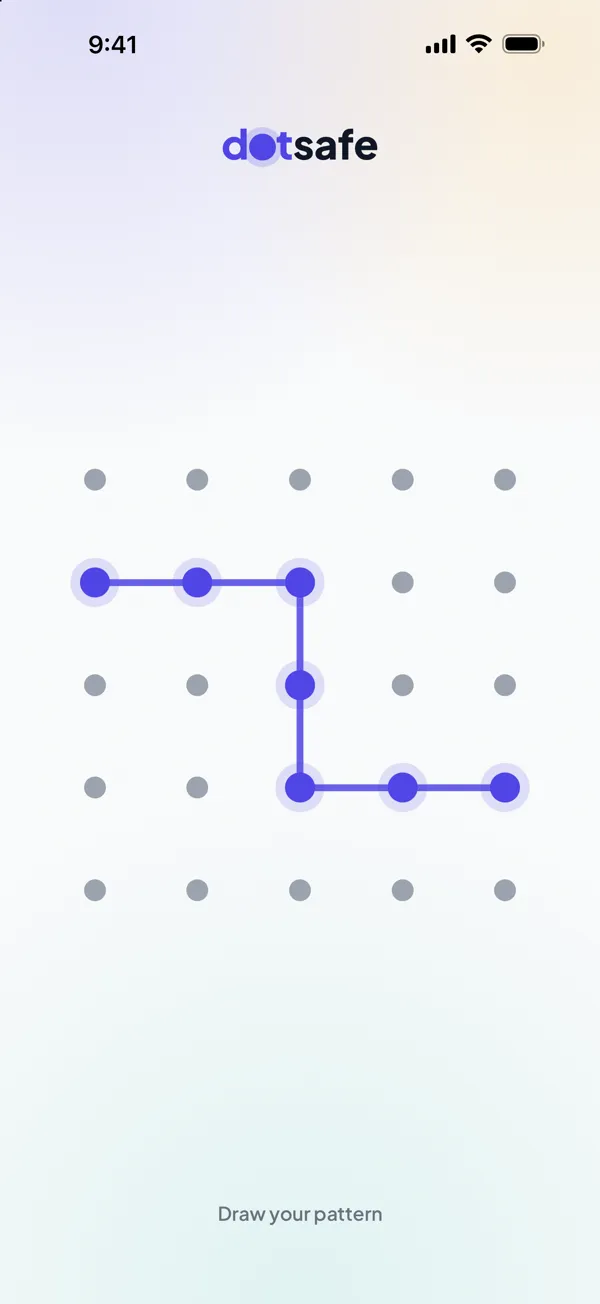
So the backup of a vault is DotSafe's own sync, with Pro. Turn on Sync this vault in the vault's settings. DotSafe encrypts each block on your device before it uploads it to your private iCloud database, with either iCloud setting. Apple cannot read the blocks, and we never receive them. To restore a vault on a new device, install DotSafe, sign in to iCloud and draw the pattern.
On Free, a vault is on your device only. If you lose the device, you lose the vault. Backups and iCloud sync has the details.
Questions
Are iCloud photos encrypted?
Yes. With the default setting, Apple encrypts them and holds the key. With Advanced Data Protection on, they are end-to-end encrypted, and only your devices hold the key.
Is Google Photos end-to-end encrypted?
Google does not say so. Its safety page says that Google Photos uses encryption in transit and encryption at rest.
Does iCloud Backup include my photos?
Not if you use iCloud Photos, because your photos already sync to iCloud. If iCloud Photos is off, iCloud Backup can include the photos on your iPhone.
What is the most private way to back up iPhone photos?
Use a backup that is encrypted before it leaves your device, with a key that only you hold. iCloud with Advanced Data Protection and an encrypted computer backup both do this.
Sources
We checked these pages on 8 November 2026.