This guide shows the first steps in DotSafe: draw a pattern, add your photos, files and records, find them again, and lock the vault. It takes about five minutes.
1. Draw your pattern
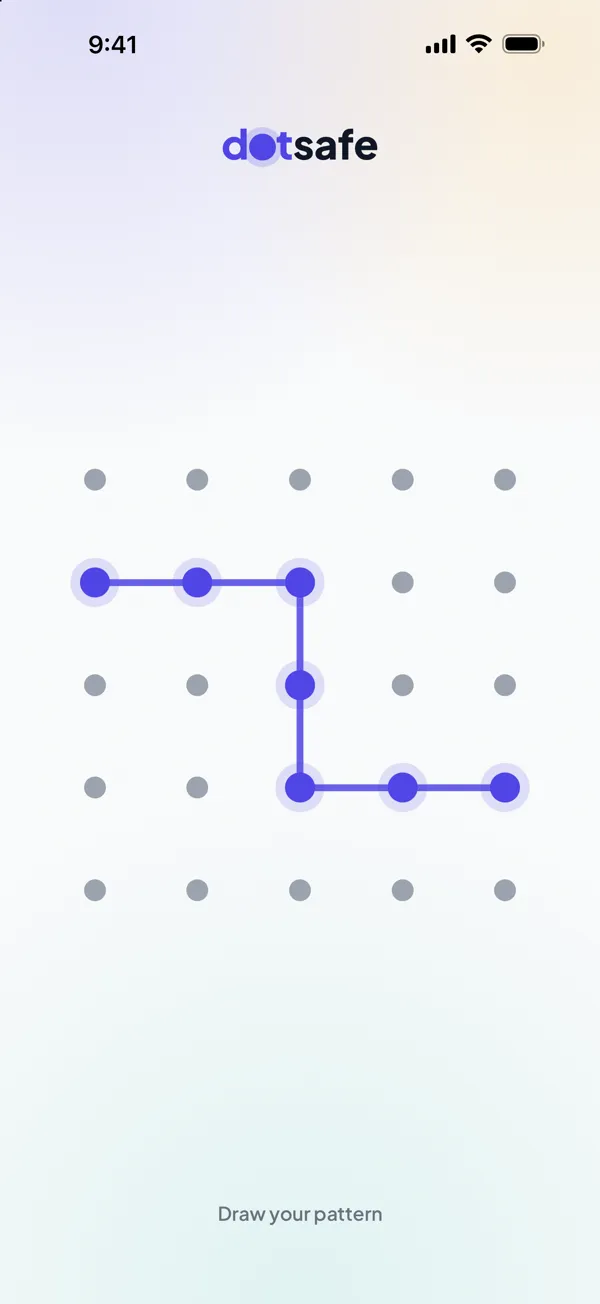
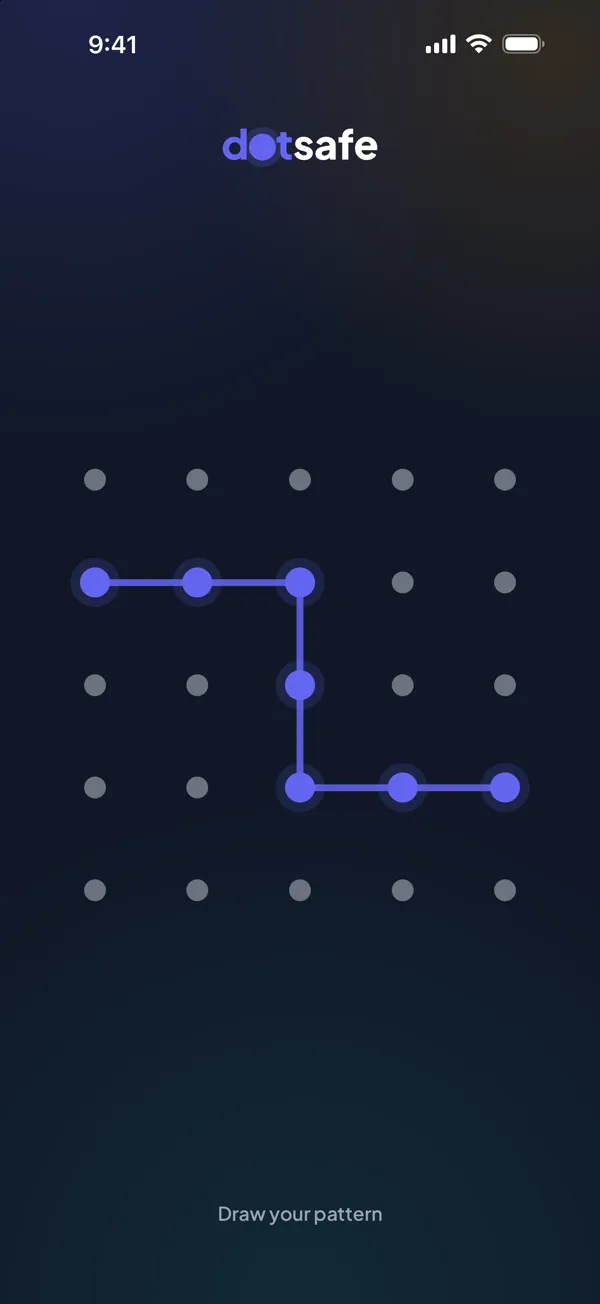
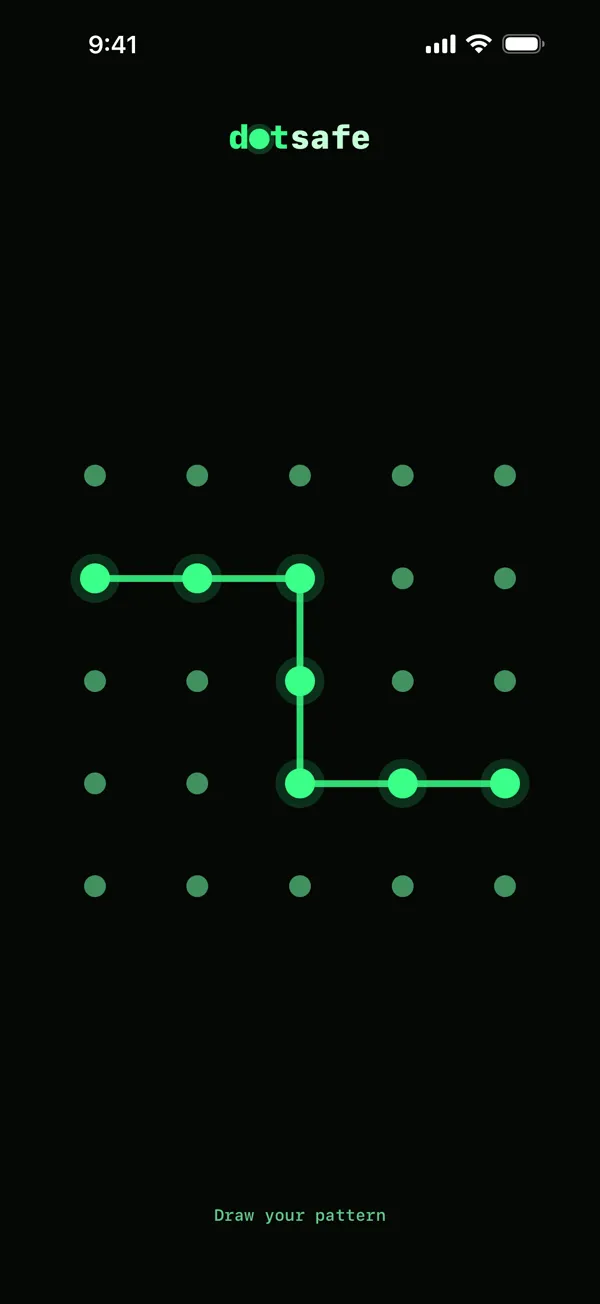
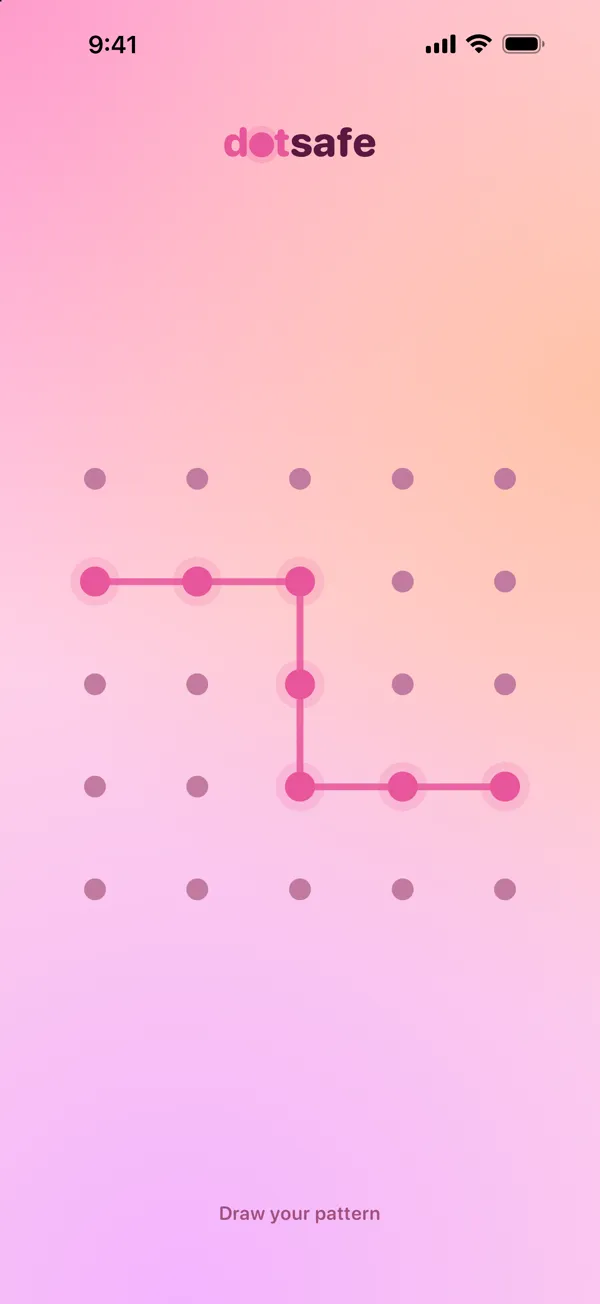
When you open DotSafe for the first time, you choose a theme and see a short tour. Then the app shows a grid of 25 dots.
- Connect at least 4 dots in one movement. Each dot can be used one time.
- Lift your finger. DotSafe opens a new, empty vault for this pattern.
- Remember the pattern. DotSafe does not store it, so there is no way to reset it. If you forget it, the vault cannot be opened.
A different pattern opens a different vault. You can keep work and personal things apart, or keep a decoy vault. Read Choosing a strong pattern before you choose one for important things.
2. Add photos, videos, files and records
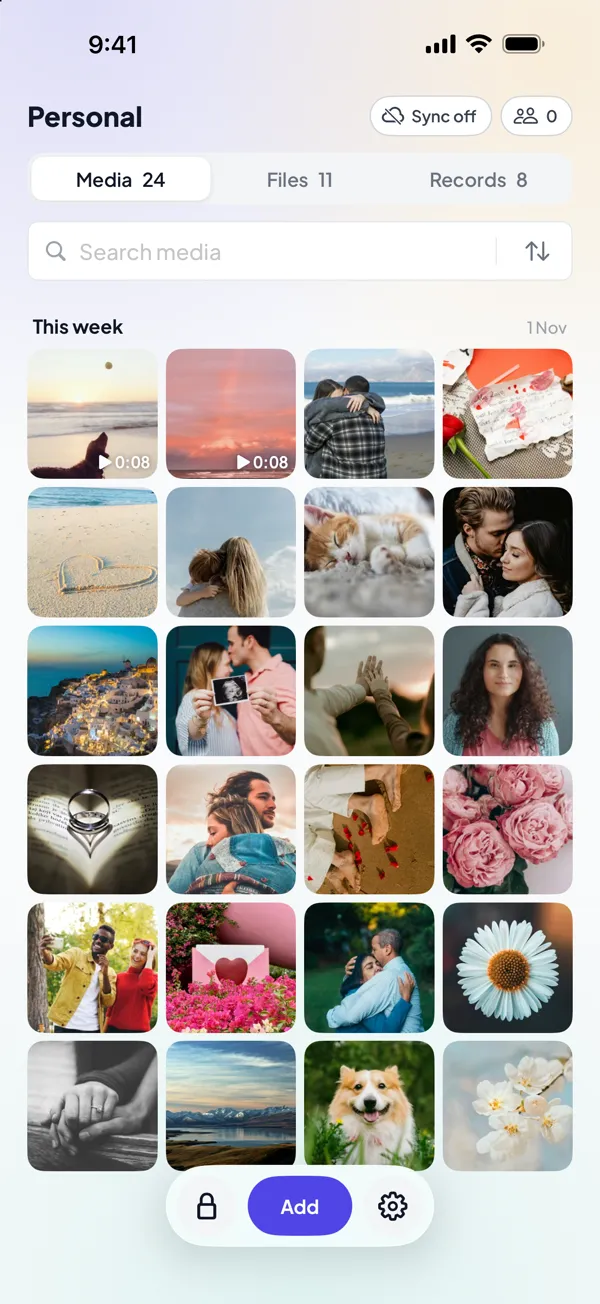
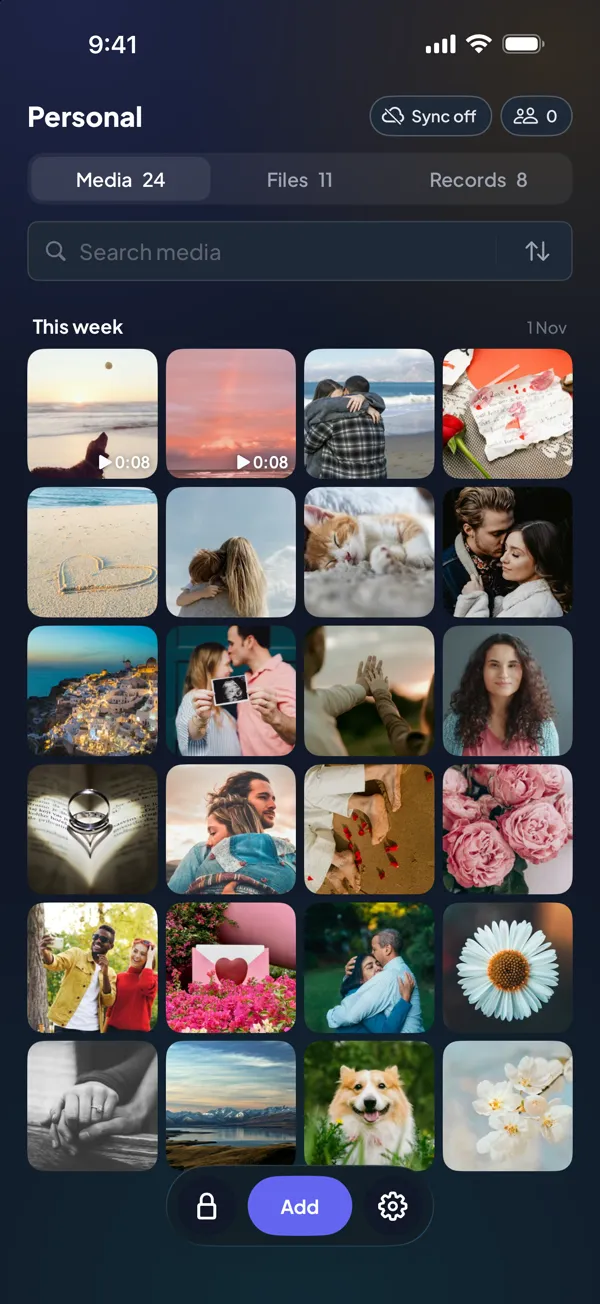
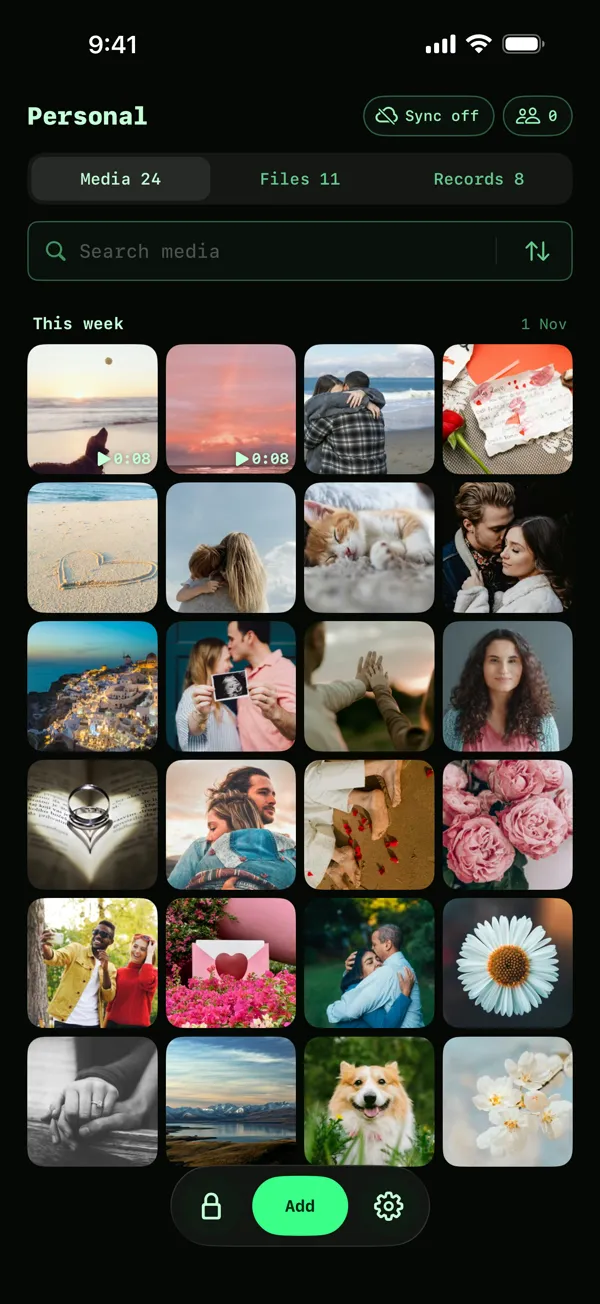
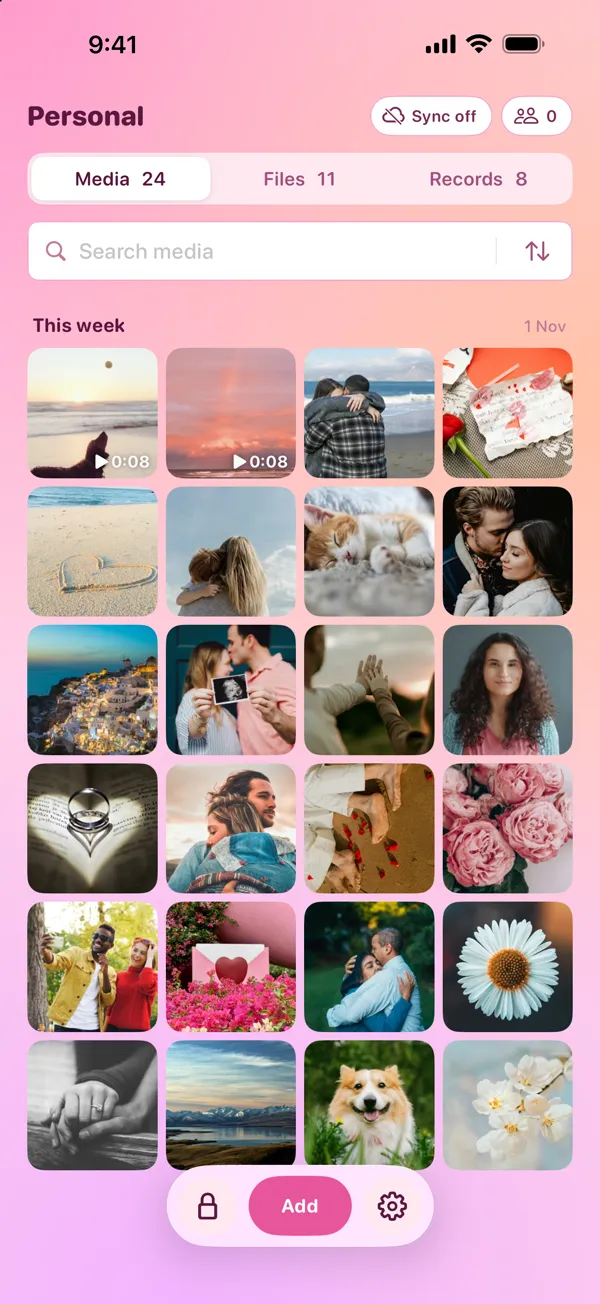
Tap Add at the bottom of the screen. You can add:
- Photo library: photos and videos from Photos. After the import, DotSafe asks if you want to delete the originals from Photos.
- Camera: take a photo or a video straight into the vault. Nothing goes to Photos.
- Files: PDFs and other documents from the Files app.
- New folder: a folder in the Files tab, to keep files together.
- A record: a note, a login, a list, a card, an identity, a licence, a policy, a membership, a bank account or a Wi-Fi network.
Each item is encrypted on your device before it is saved.
3. Find your things
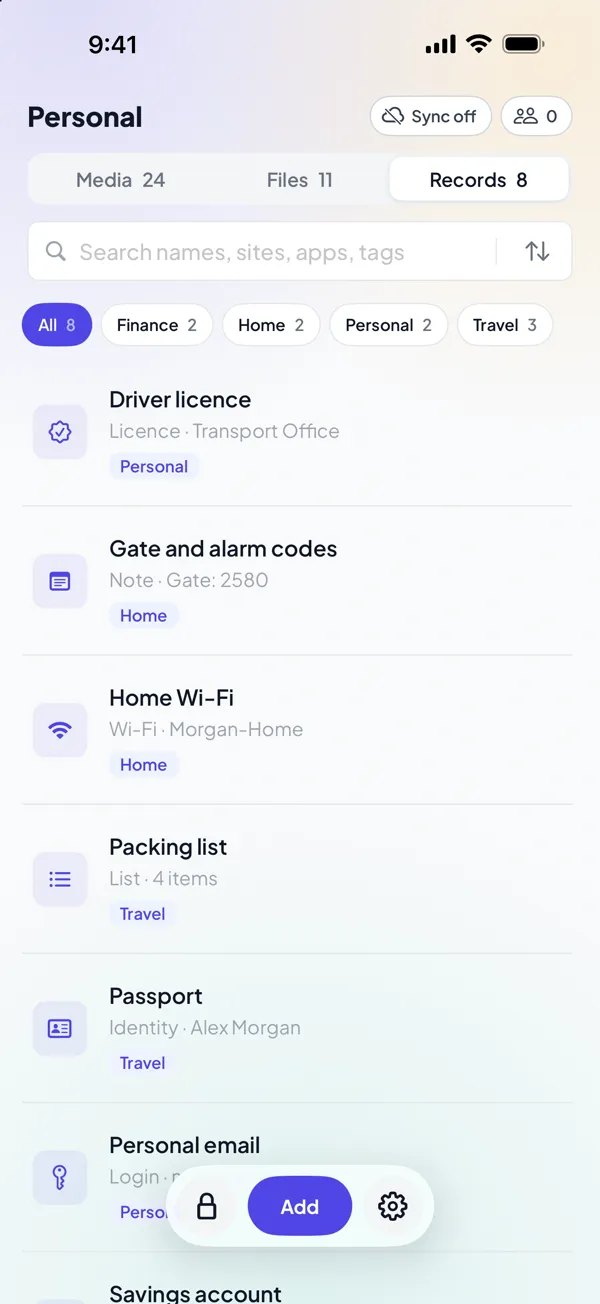
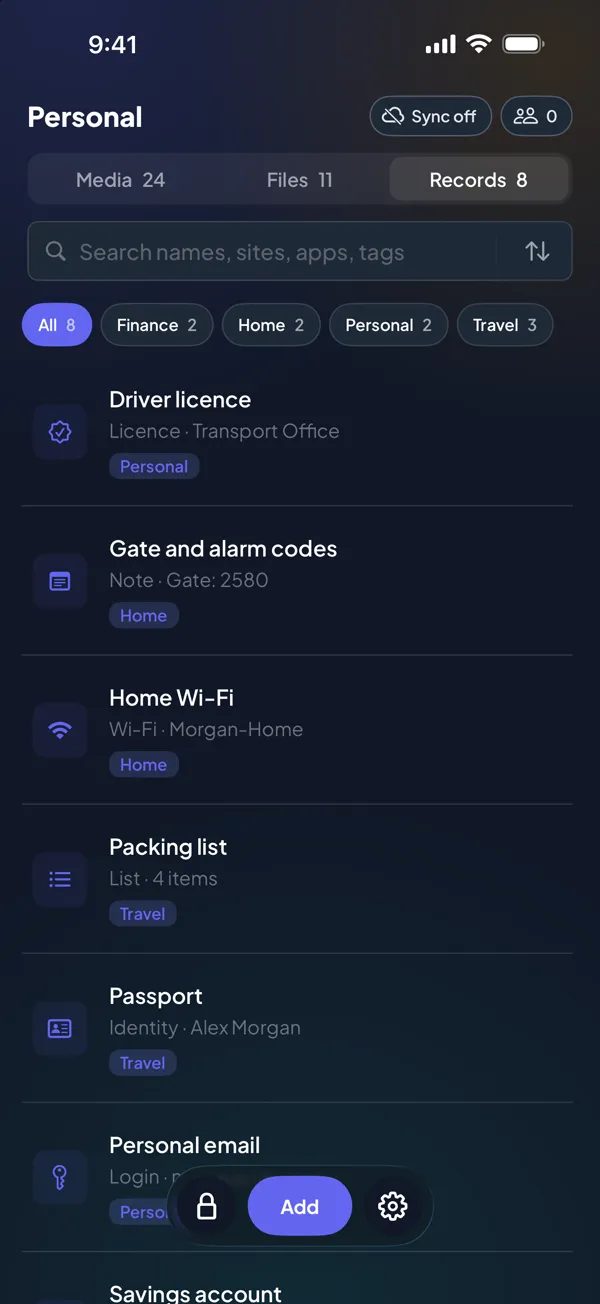
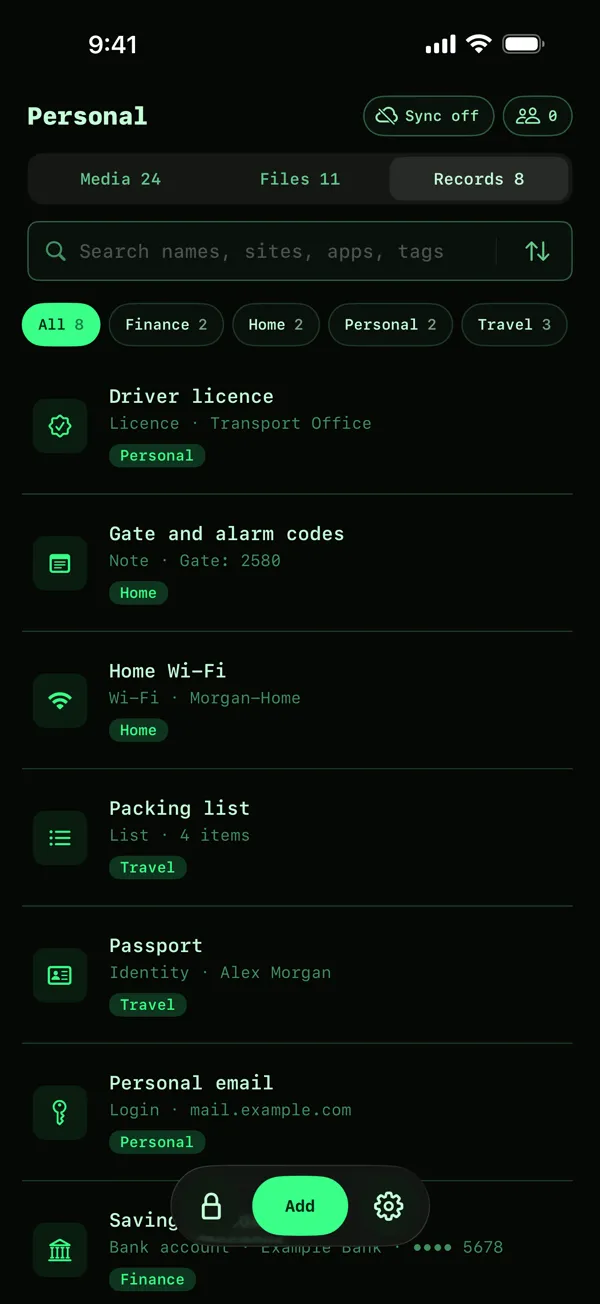
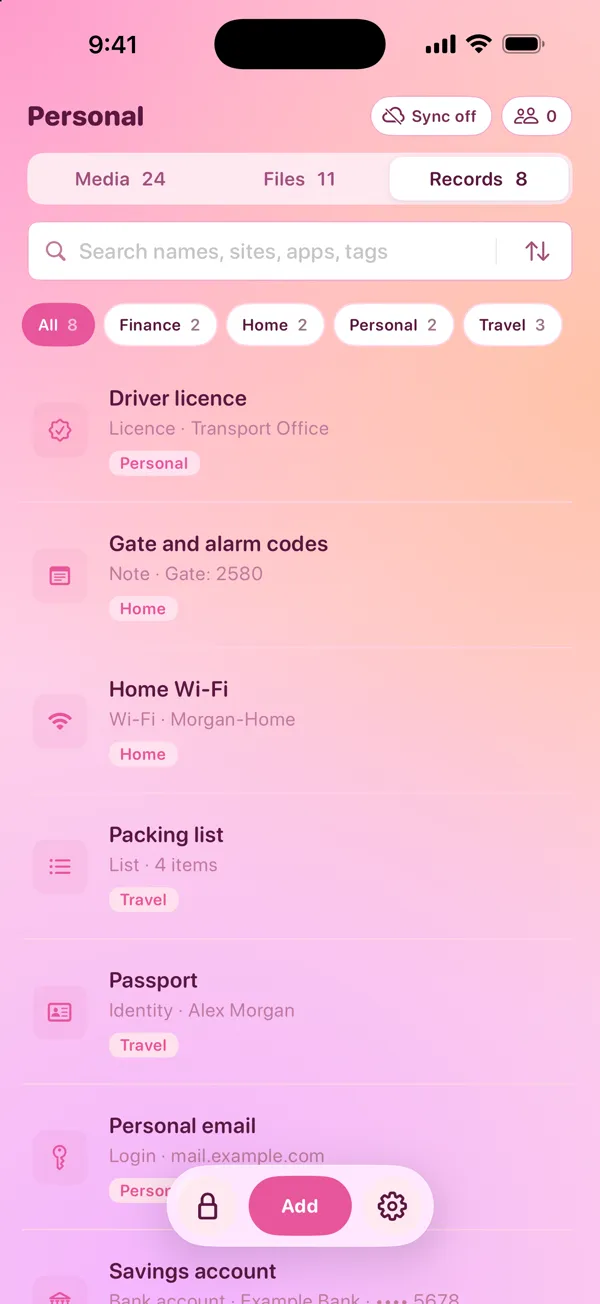
The vault has three tabs: Media for photos and videos, Files for documents and folders, and Records for logins, cards, IDs and notes. Swipe left or right to change the tab.
- Search finds items by name. In Records, it also finds websites, apps and tags.
- Sort is the button at the end of the search field.
- Tags group records. Tap a tag above the list to show only those records.
4. Copy a password or a card number
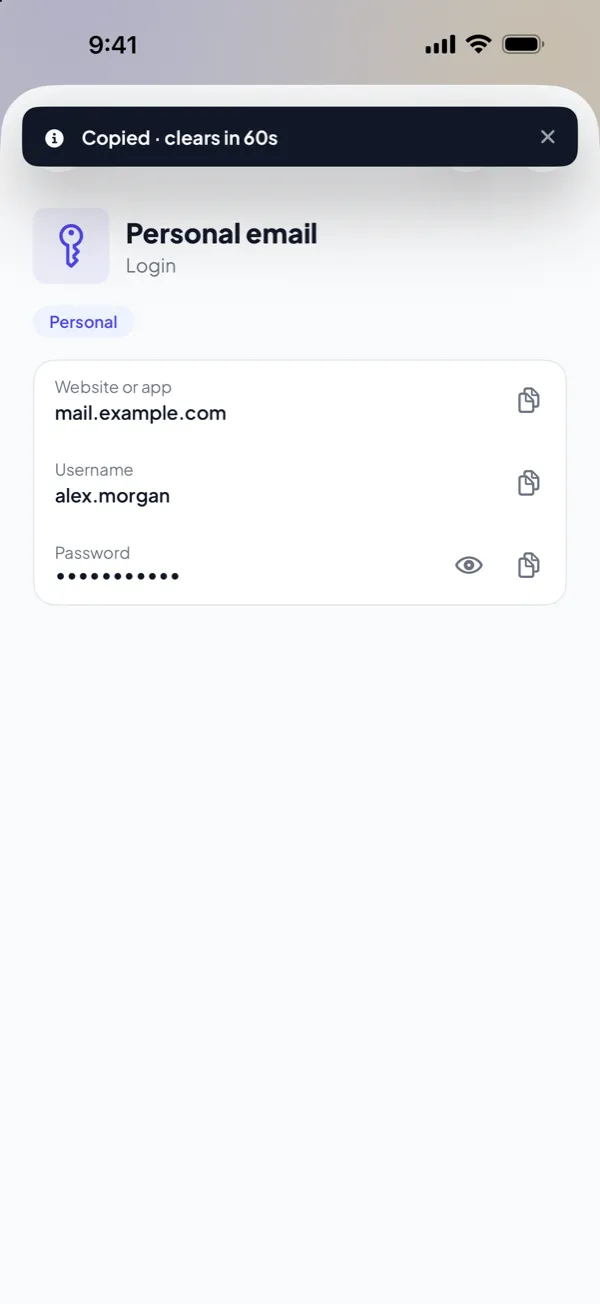
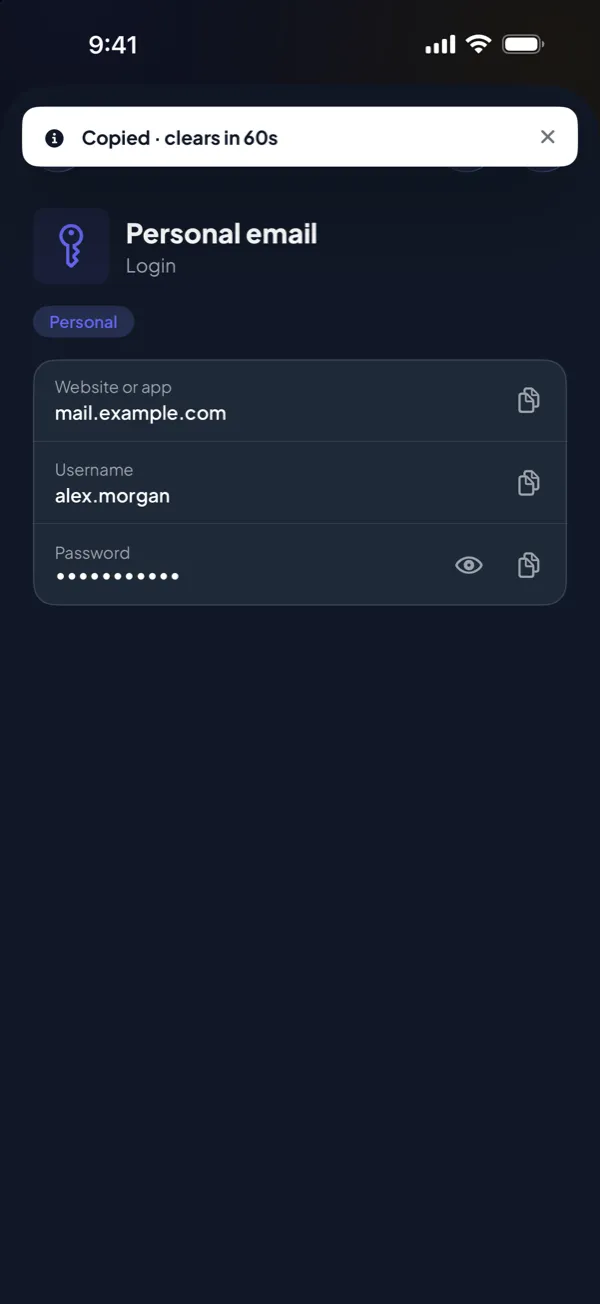
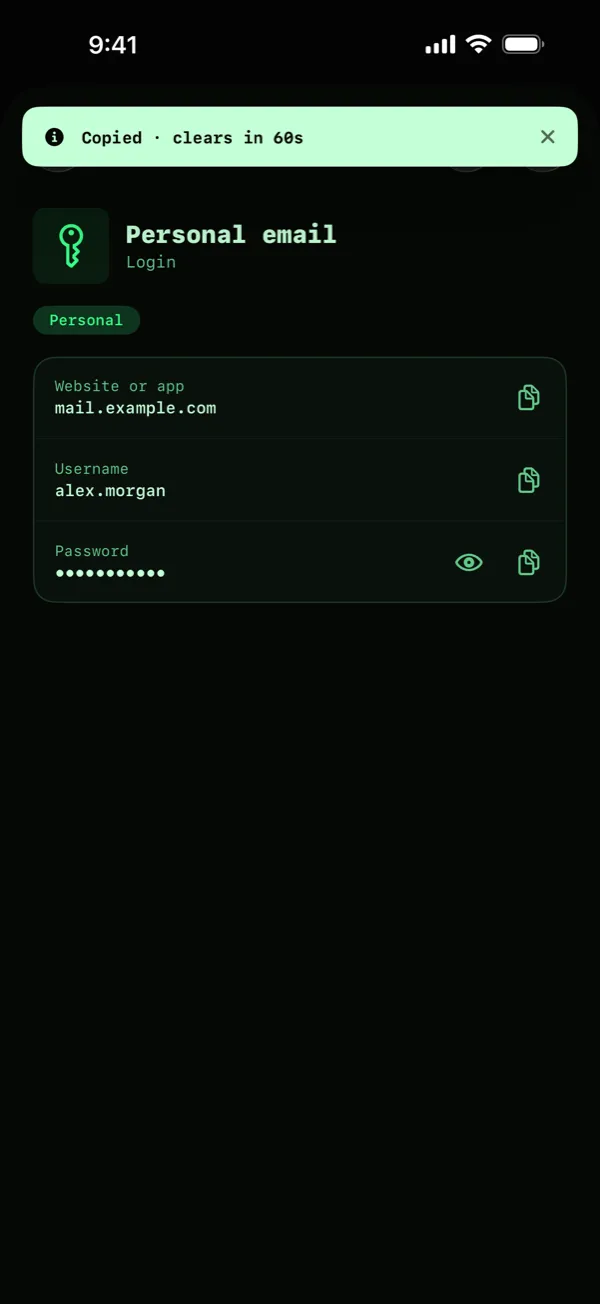
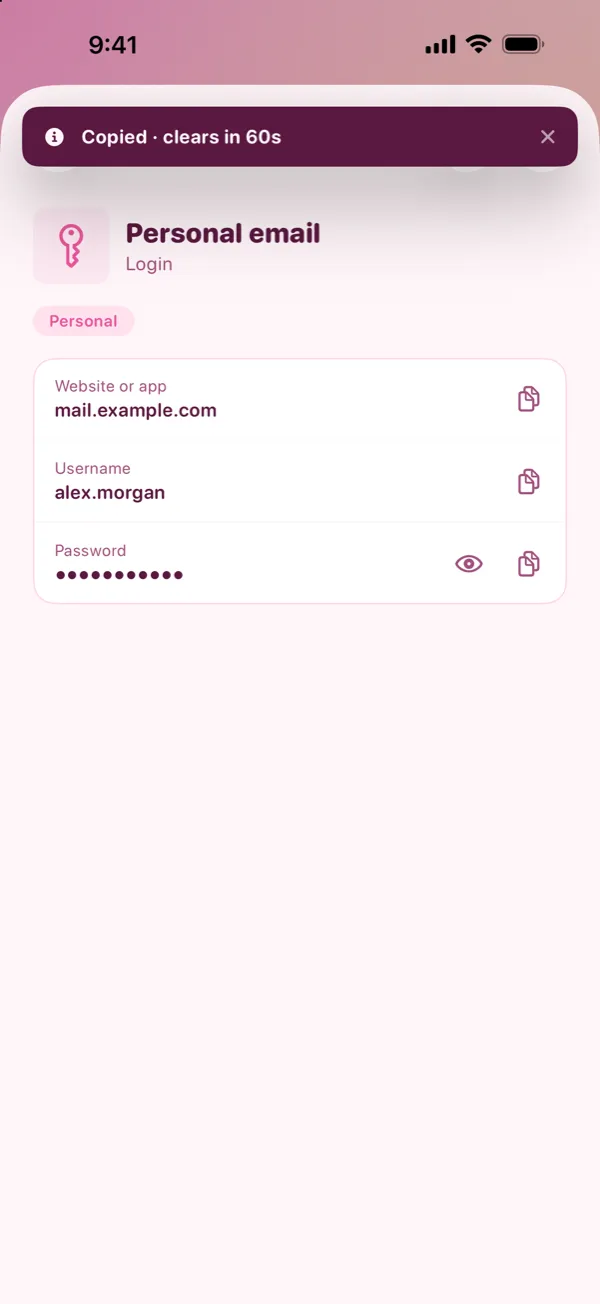
Open a record, then tap the copy button beside a field. Paste it in the other app.
- The copy is on this device only. It does not go to your other devices.
- The copy clears after 60 seconds.
- Tap the eye to show a hidden field, for example a password or a PIN.
When you go to the other app to paste, DotSafe covers the vault with the pattern screen. Come back quickly and draw the same pattern: the vault is as you left it, with the record still open. If you stay away longer, the vault locks.
5. Lock the vault
Tap the lock at the bottom left when you are done. The vault also locks soon after you leave the app. To open it again, draw your pattern.
6. Settings
Tap the gear at the bottom right. Settings has two parts:
- This vault: the name of the vault, sync with iCloud, and sharing. Sync and sharing need Pro. Read Backups and iCloud sync and Sharing a vault.
- App: the theme, the grid size, privacy, the duress pattern, your plan, your contact code, and help.
To see the tips in the vault again, open Settings, then Help and legal, and tap Show tips again.