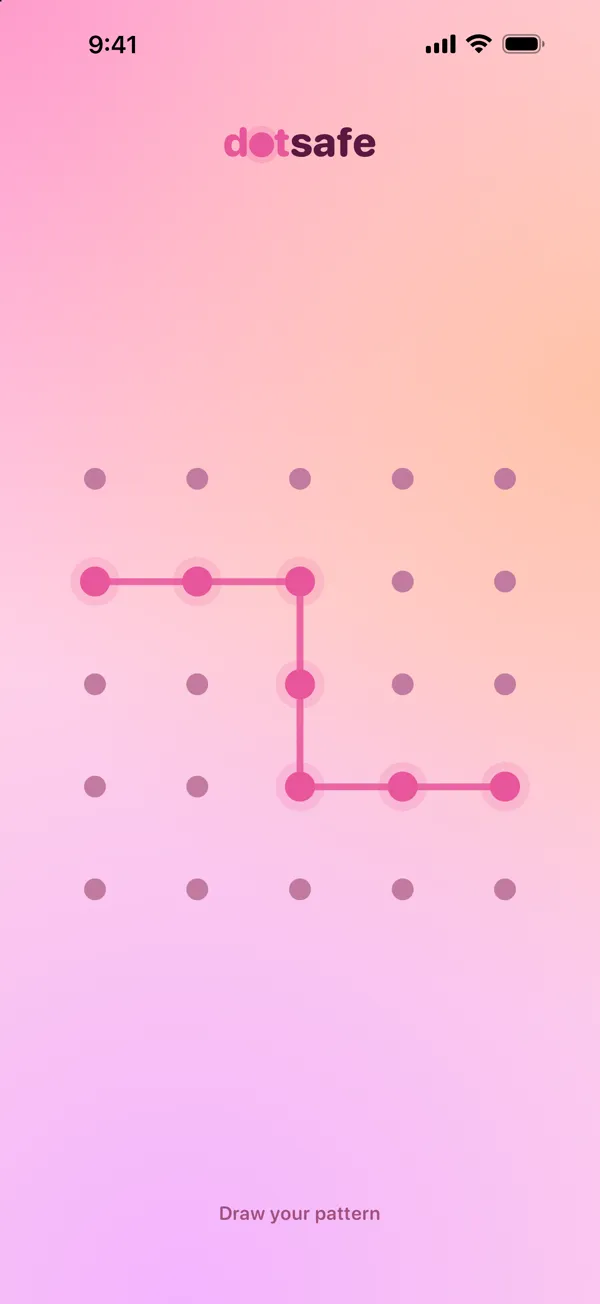
Keep wills, leases, tax returns, medical letters and scans of your documents in a vault. DotSafe keeps them in folders, as in the Files app, and encrypts each one on your device.
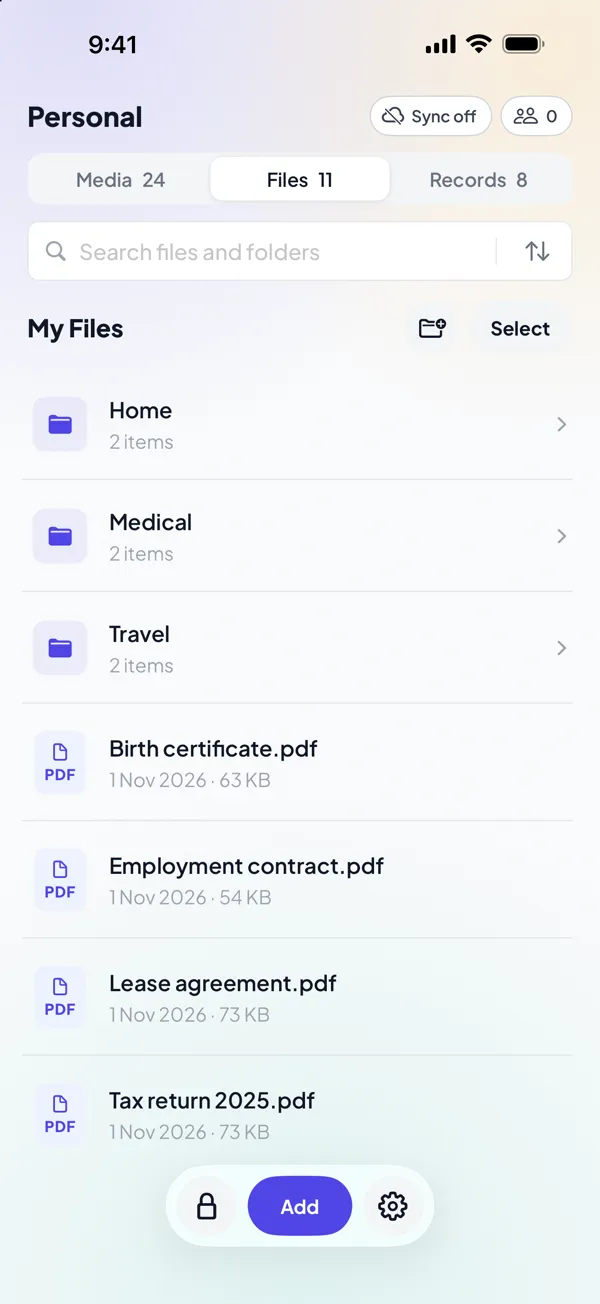
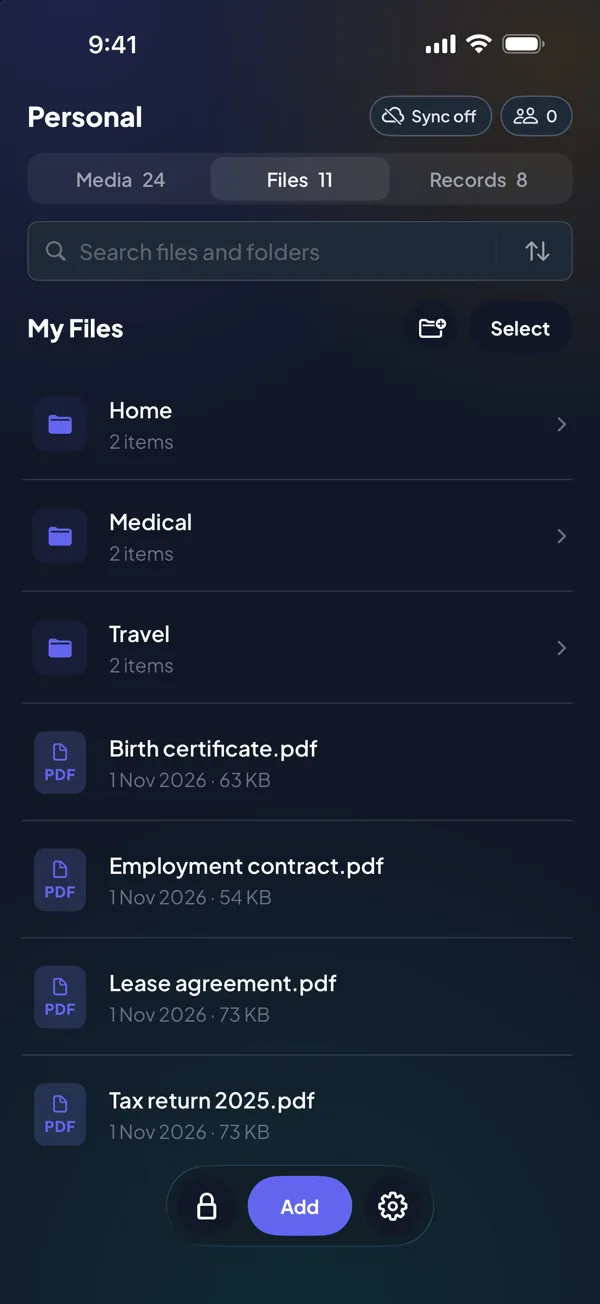
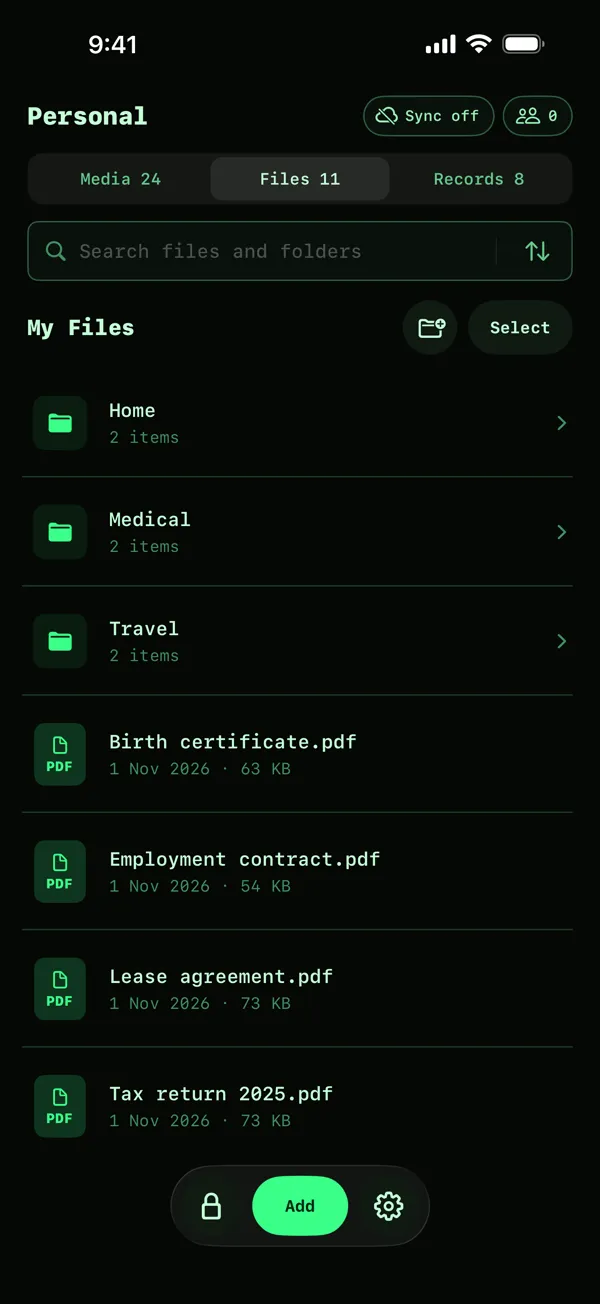
Add documents
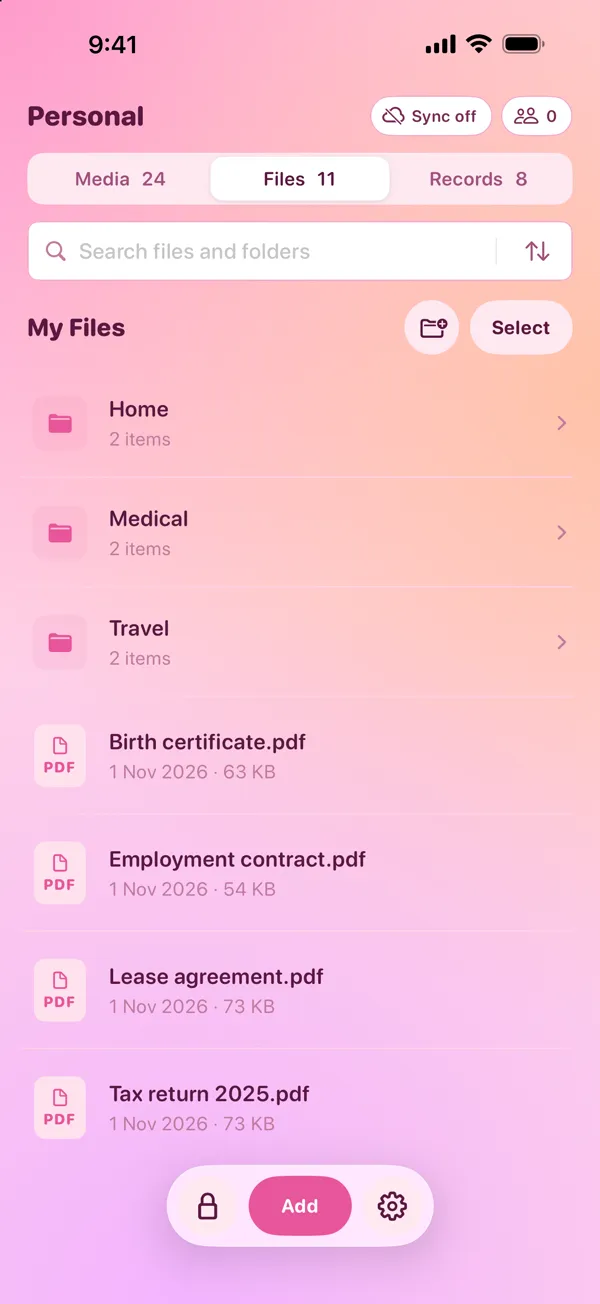
Tap Add, then Import files. Select files from the Files app, iCloud Drive or another file provider. DotSafe accepts all types of file.
After you import a file, delete the original from the place where it came from. DotSafe cannot delete files in other apps.
Folders that work like Files
The Files tab keeps folders in folders. Make a new folder, rename an item, or move it to another folder. Touch and hold an item to see the actions. Search finds files by name, type and folder.
Read documents in the vault
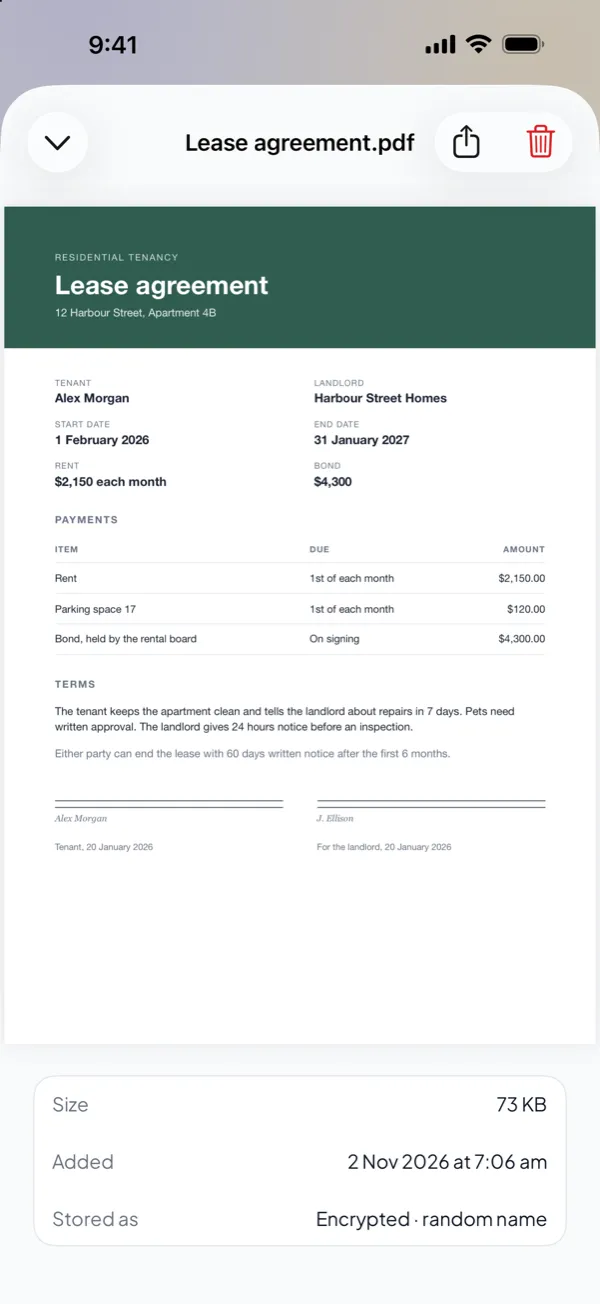
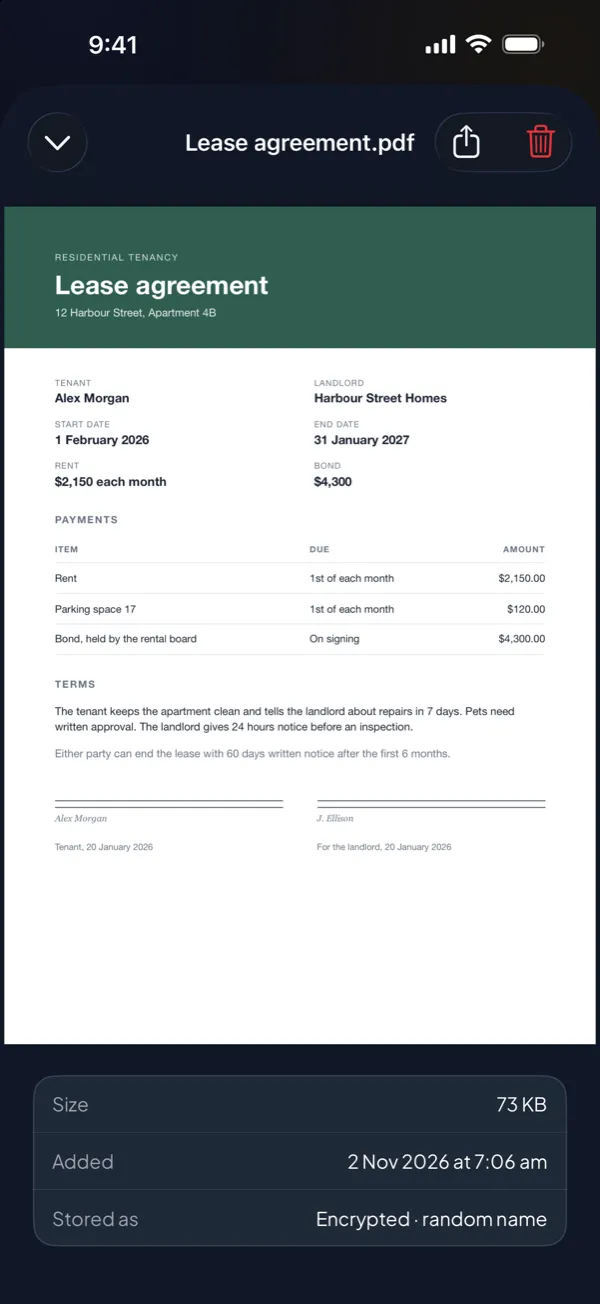
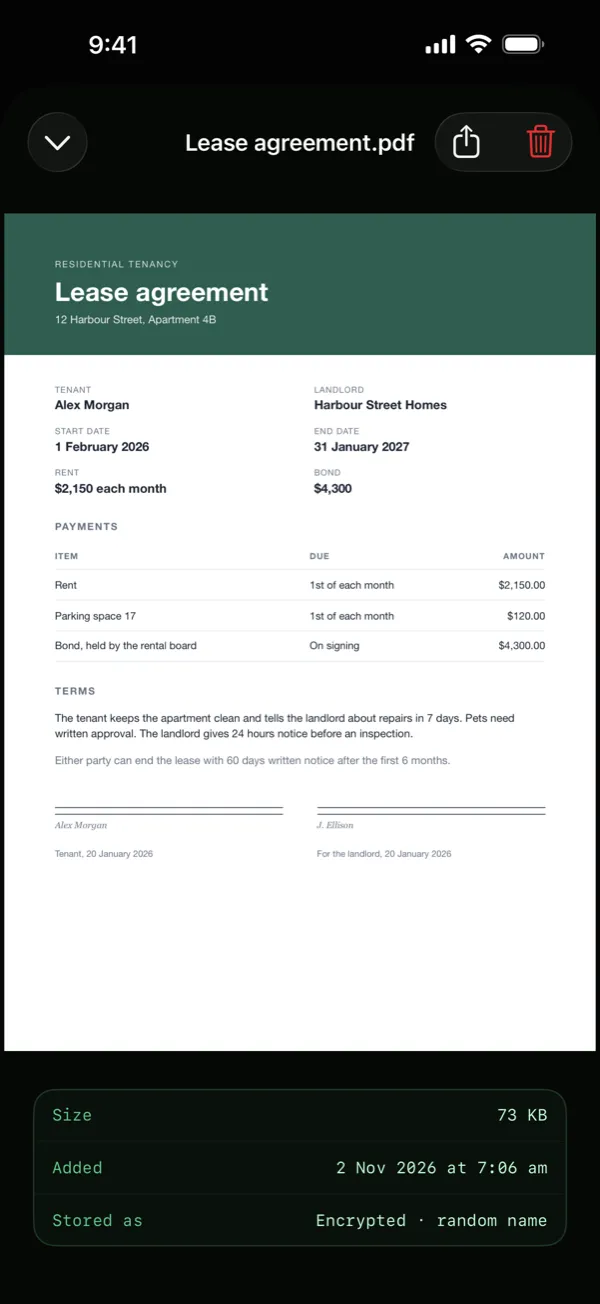
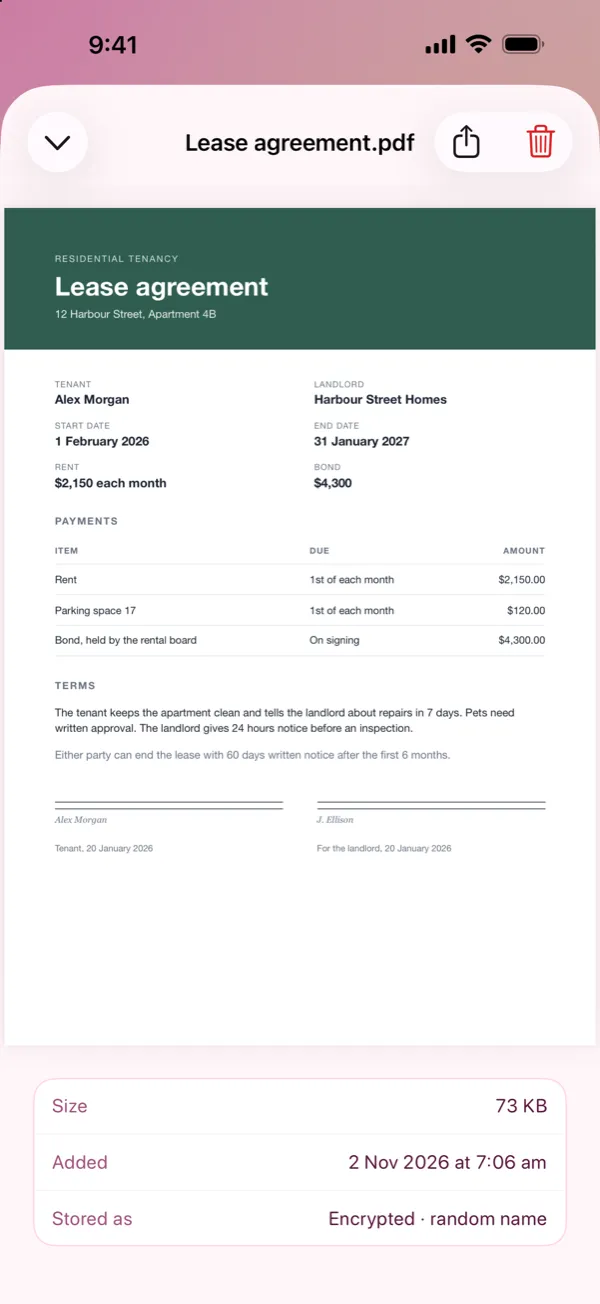
DotSafe shows most documents from memory, with no copy on disk:
- PDF files, with pages that you can scroll and zoom.
- Text and RTF files.
- ePub books.
- Photos and scans.
Word, Excel, PowerPoint, Pages, Numbers and Keynote files need the iOS preview, and it can read only a file on disk. For these files, DotSafe asks you each time before it writes a temporary copy. The copy has a random name, has no share button, and DotSafe deletes it when you close the preview or leave the app.
Send a copy
To give a document to someone, touch and hold it, then tap Send a copy. DotSafe tells you first that the copy leaves the vault. The copy that you send is not protected by DotSafe.
Keep a backup
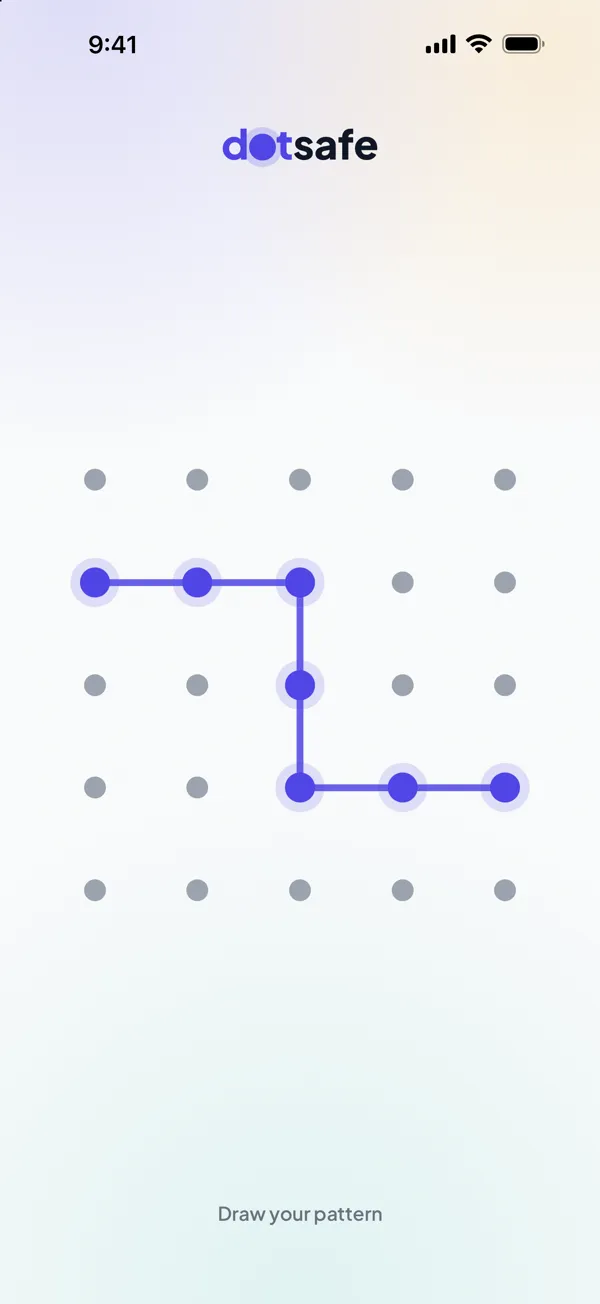
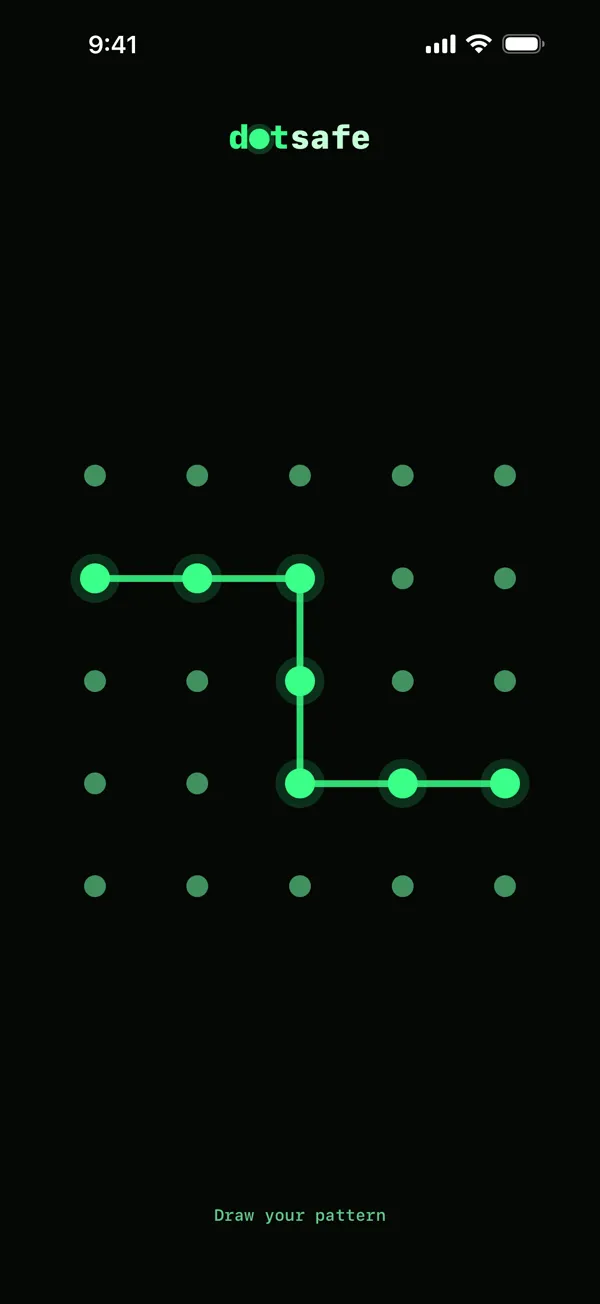
A document in a vault is only on your device. If you lose the device or forget the pattern, the document is lost. With Pro, DotSafe can keep an encrypted copy of a vault in your iCloud. See Backups and iCloud sync.