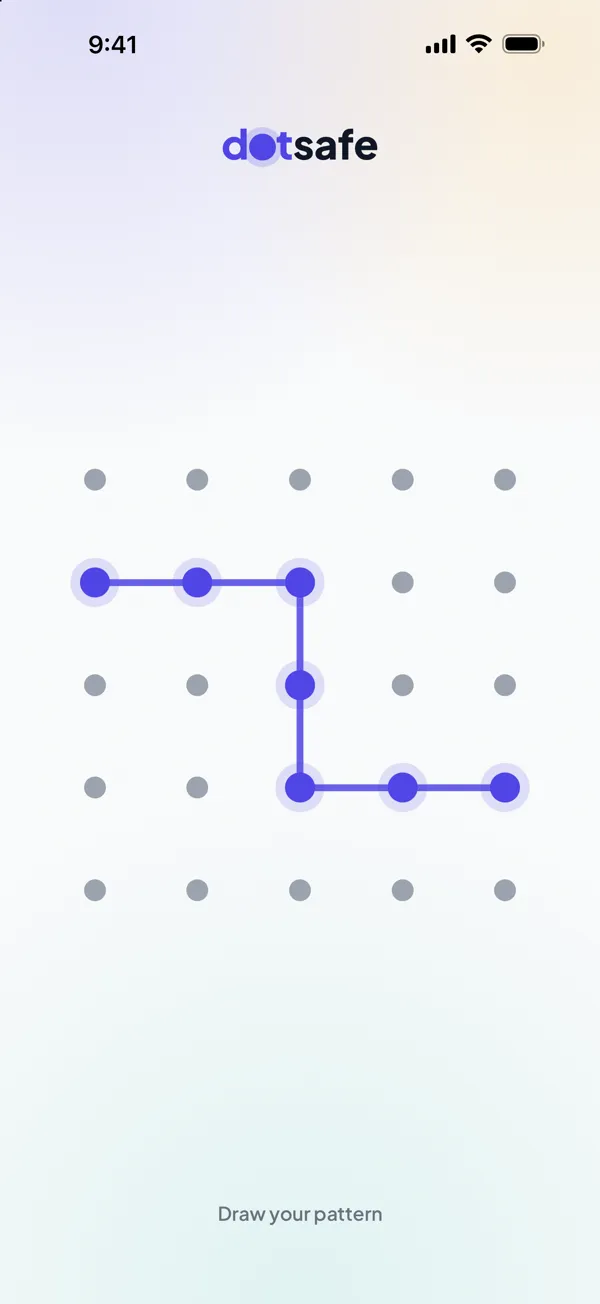
Keep private photos and videos out of your camera roll. DotSafe encrypts each one on your device, and only your pattern opens them.
Move photos into the vault
- Open the vault. Draw its pattern.
- Tap Add, then Import from Photos. Select the photos and videos. DotSafe shows the progress.
- Delete the originals. After the import, DotSafe can delete them from Photos for you. iOS asks you to confirm.
Photos that you delete go to Recently Deleted in Photos for up to 30 days. Empty that album too. How to hide photos on iPhone has more about the steps after you move photos.
Take photos straight into the vault
DotSafe has its own camera for photos and videos. What you take with it goes into the vault only. It is not saved to Photos and not synced to iCloud Photos. A video recording can be up to 10 minutes long.
Look at them as in Photos
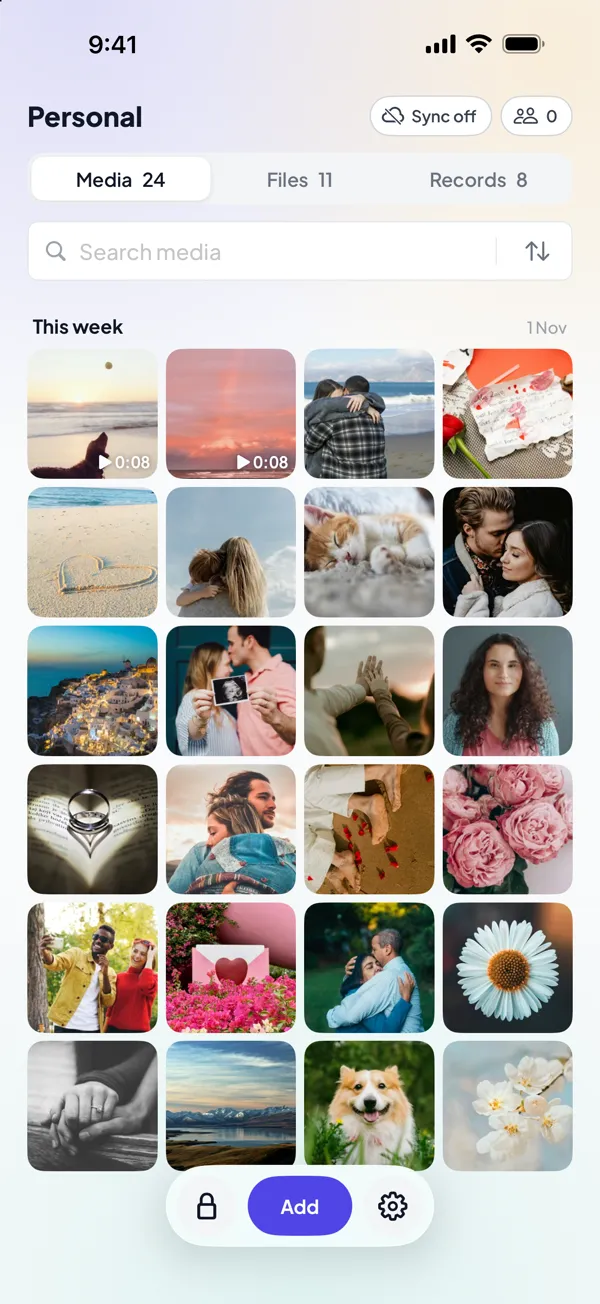
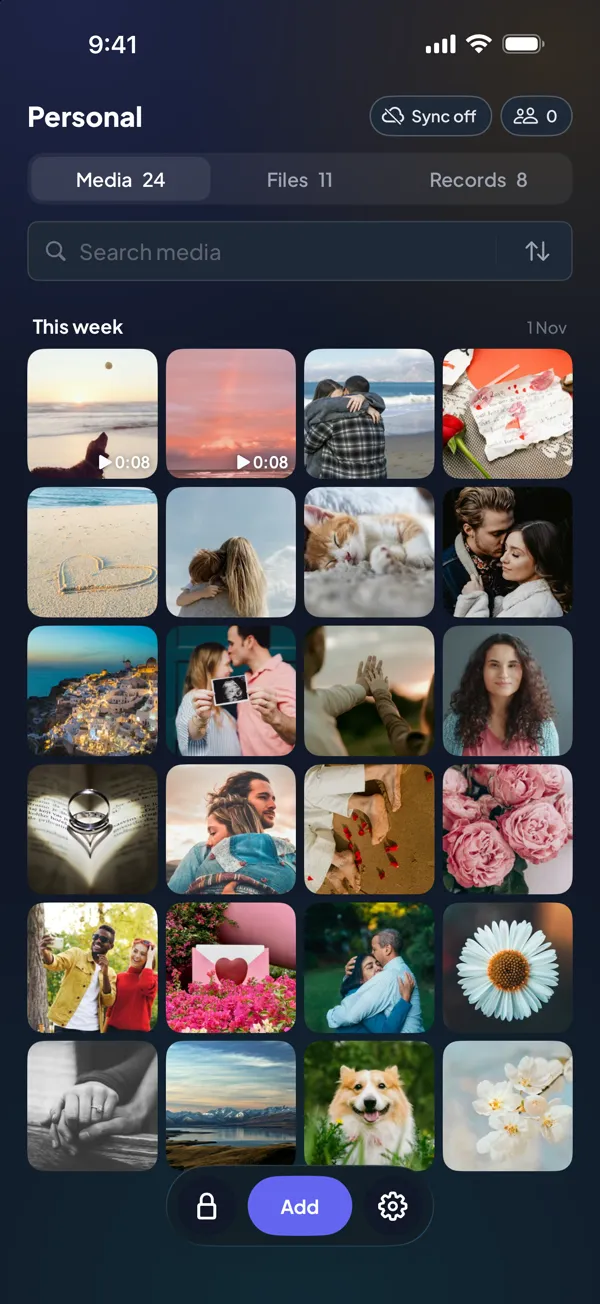
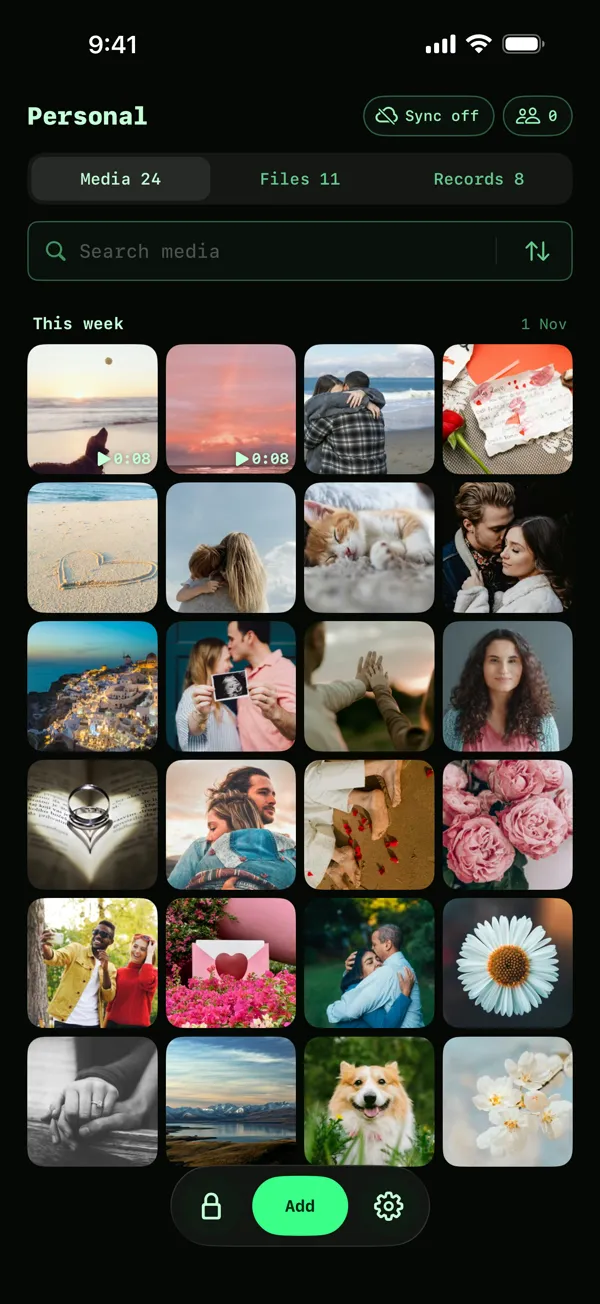
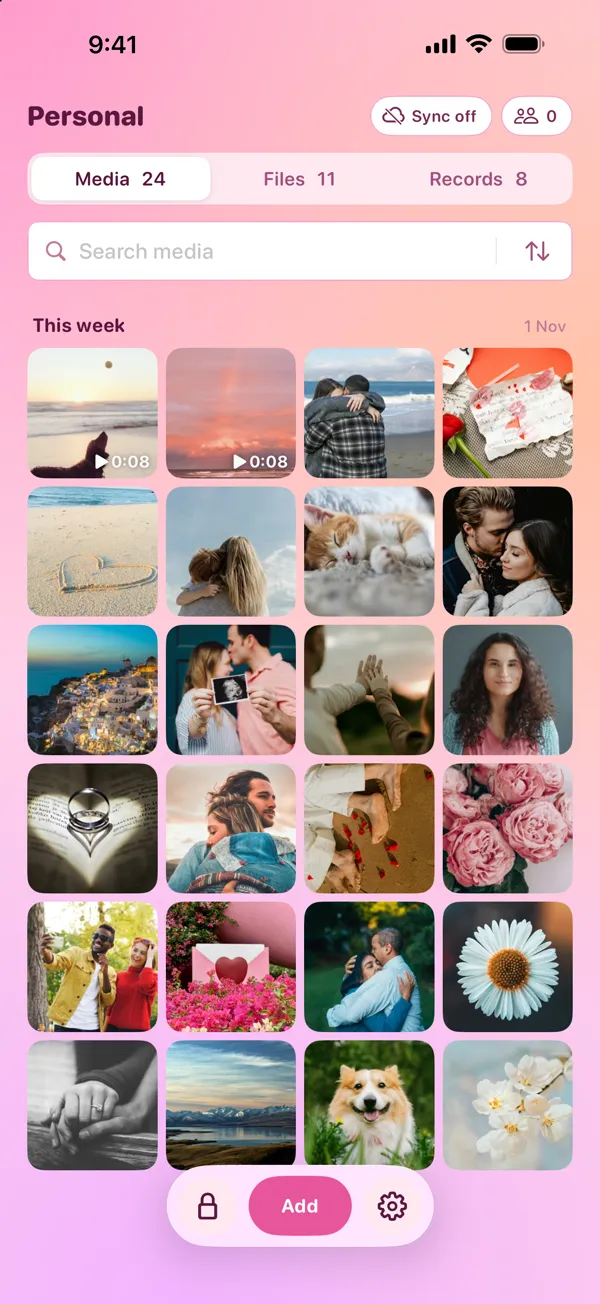
- The Media tab shows a square grid. Set 3, 4 or 5 columns in Settings.
- Open a photo full screen, pinch to zoom, and swipe to the next one.
- Videos play in the vault. DotSafe decrypts each part of a video in memory when the player needs it.
- Search and sort work in each vault. Each vault keeps its own sort settings.
What DotSafe does with each photo
DotSafe gives each item its own key. It divides the item into blocks of one size and encrypts each block with AES-256-GCM. The thumbnails in the grid are encrypted too. DotSafe does not write a decrypted copy of a photo or video to the storage of your device. How DotSafe encrypts your files has the full details.
Take a photo out again
Touch and hold a photo, then tap Send a copy to save it to Photos or send it to an app. DotSafe tells you first that the copy leaves the vault. A copy outside the vault is not protected by DotSafe.
Limits
Free keeps up to 100 items and 5 videos in each vault, in up to 3 vaults. Pro has no limits. See Pricing.