With Pro, a vault can sync to your other devices through your own iCloud, and you can share one vault with people you trust. DotSafe encrypts everything on your device first, and we have no servers.
Sync a vault to your other devices
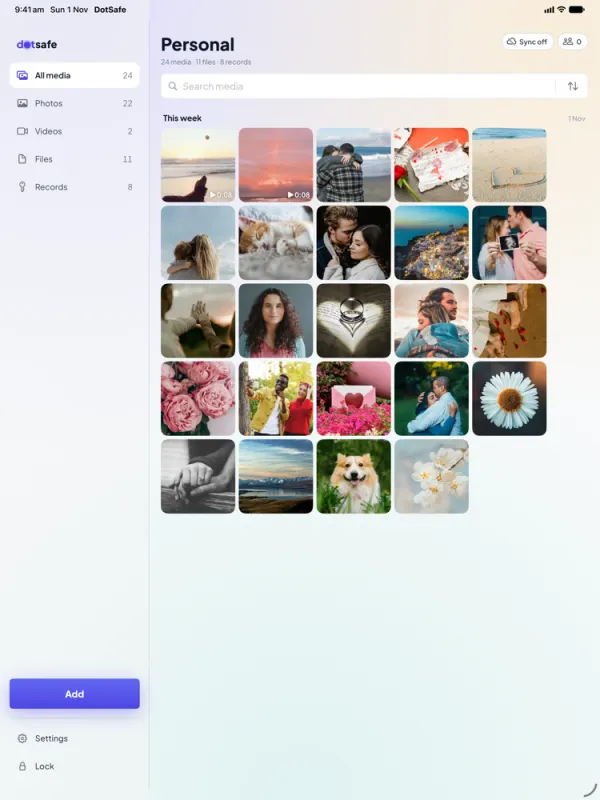
Sync is a setting for each vault. Open the vault, open Settings, and turn on Sync this vault. Keep your main vault on all your devices, and keep another vault on one device only.
On your other iPhone or iPad, draw the same pattern. DotSafe finds the vault in your iCloud and opens it. You need the same Apple Account and iCloud Keychain on each device.
What iCloud receives
iCloud gets only padded, encrypted blocks of one size, mixed with cover blocks. Apple cannot read them, and they do not show which vault they belong to. DotSafe uses the private iCloud database of your Apple Account, not iCloud Drive. Backups and iCloud sync has the full details.
Share one vault
- Open the vault that you want to share. Open Settings, then tap Shared with.
- Add a person. Scan their QR code, type their contact code, or select a saved contact.
- Select a role. Can view or Can edit.
- Send the invite with Messages, AirDrop or a link.
The person taps the link and draws a new pattern for the shared vault. A Free user can join a shared vault. The owner's plan sets its limits.
Edits sync to everyone
When a person with edit access adds or changes an item, the change syncs to all members. A person with view access can open every item but cannot change them. The owner can change a role or remove a person at any time.
What each person can see
- Members see the shared vault and the other members. They do not see your other vaults.
- Apple can see the Apple Accounts of the members, but not the files.
- A person that you remove keeps what they already saw. New items get a new key.
- The owner of a shared vault cannot change. If the owner deletes the vault, every member loses it.
Do not share a decoy vault: the members know that it exists. Sharing a vault safely tells you more.