Your passcode opens almost everything on your iPhone: your photos, your messages, the Hidden album and your saved passwords. If someone else knows it, these six steps take back control. They take about ten minutes.
1. Change your passcode
Do this first. Every other step is weaker while someone else knows the code.
- Open the Settings app, then tap Face ID & Passcode (or Touch ID & Passcode).
- Tap Change Passcode.
- Tap Passcode Options and choose a custom code with letters and numbers, or at least six digits.
Type the new code where no one can see the screen. A person who watches you type a code can learn it in a few seconds.
2. Check Face ID and Touch ID
A person who knows your passcode can add their own face or fingerprint. After that, they do not need the code.
- Face ID: in Face ID & Passcode, look for Set Up an Alternate Appearance. If that option is gone and you did not add a second appearance, someone else did. Tap Reset Face ID, then set it up again.
- Touch ID: in Touch ID & Passcode, look at the list of fingerprints. Delete any that you did not add.
3. Turn on Stolen Device Protection
With Stolen Device Protection, some actions need Face ID or Touch ID when your iPhone is away from familiar places, for example home or work. The passcode alone is not enough. Changing your Apple Account password also has a delay.
In Face ID & Passcode, tap Stolen Device Protection and turn it on. It needs iOS 17.3 or later.
4. Run Safety Check
Safety Check is for people who want to stop sharing with someone. It shows what you share and which devices use your Apple Account, and it lets you stop each one.
- Open Settings, then Privacy & Security, then Safety Check.
- Tap Manage Sharing & Access to review it step by step, or Emergency Reset to stop all sharing at once.
Safety Check also lets you change your Apple Account password and see the devices that are signed in. Remove any device that you do not know.
5. Lock the apps that matter
On iOS 18 and later, you can make an app ask for Face ID before it opens. Touch and hold the app icon, then tap Require Face ID. Do this for Photos, Messages and any app with private content.
This lock uses your device passcode as the backup. It helps against a quick look. It does not help against a person who has your new passcode.
6. Keep the most private things behind a separate key
All the steps above protect your iPhone with one passcode. If someone in your life can make you unlock your phone, or will learn the next code too, one passcode is not enough for the most private things.
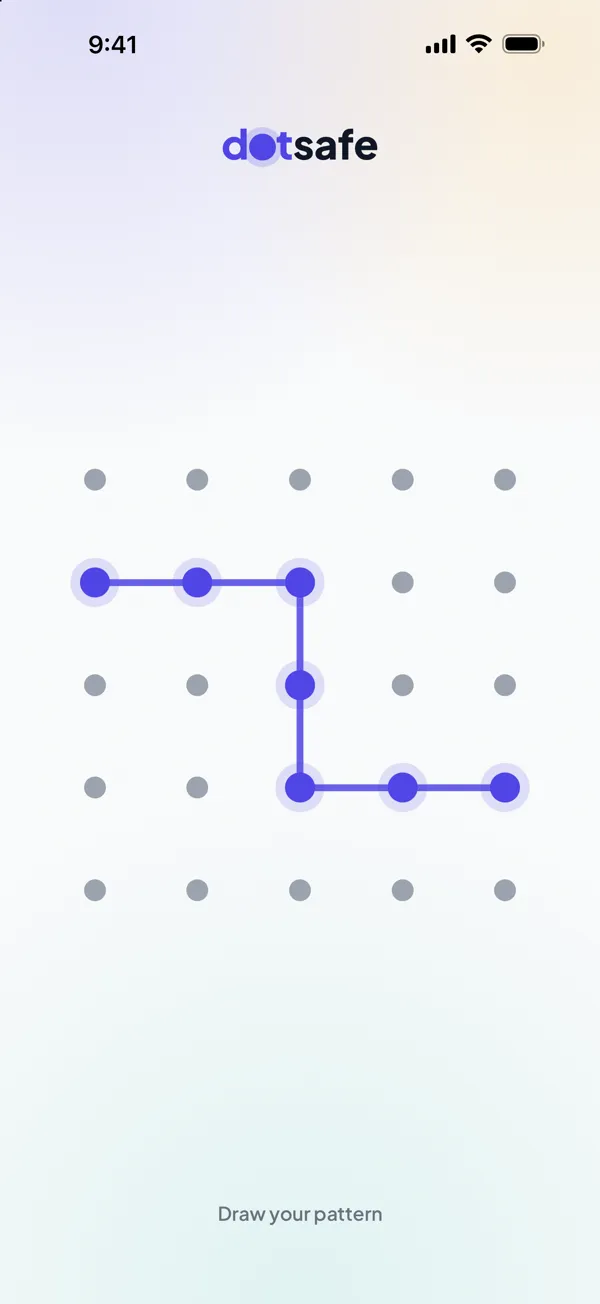
For those, use a vault with its own key that is not your passcode. In DotSafe, the key comes from a pattern that you draw, and it is never stored. A different pattern opens a different vault, so you can keep a decoy vault to open if someone asks. Nothing in the app shows how many vaults you have.
If you are not safe: changing settings can make some people angry. If you are in danger, plan your steps with someone you trust or with a local support service first. Safety Check has a Quick Exit button that closes it at once.